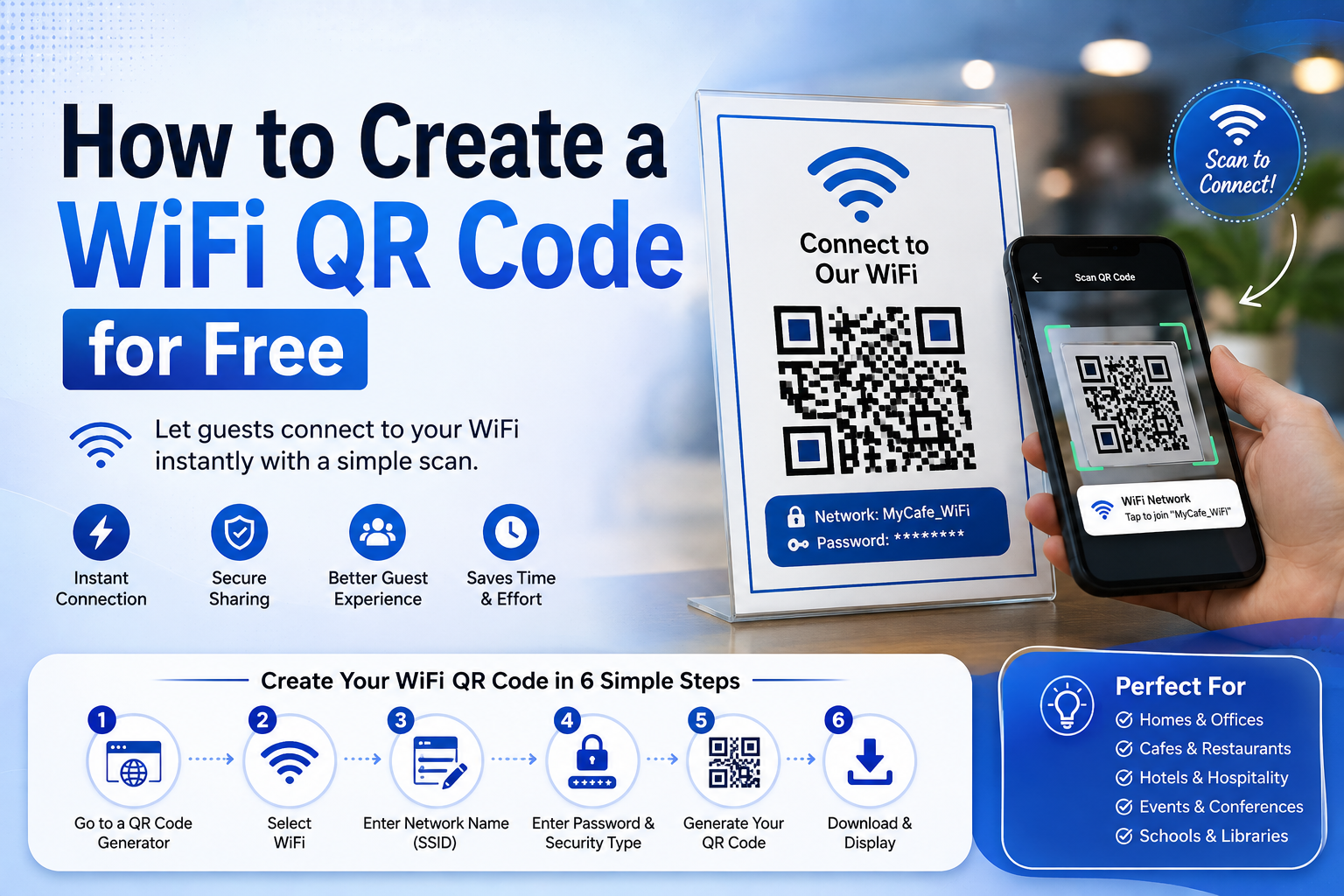
Learn how to create a WiFi QR code for free. Share your WiFi password securely, let guests connect instantly, and discover the best practices for using WiFi QR codes.
Introduction
Sharing your WiFi password with guests can be frustrating, especially when the password is long or includes a mix of uppercase letters, lowercase letters, numbers, and symbols. Every time someone asks for your network credentials, you either have to type them manually or let them copy the password, which can be inconvenient.
A WiFi QR Code solves this problem by allowing users to connect to your wireless network with a single scan. Instead of typing a complicated password, guests simply open their smartphone camera, scan the QR code, and connect instantly.
Whether you own a café, restaurant, hotel, office, or simply want to make your home WiFi easier to access, creating a WiFi QR code is one of the simplest ways to improve convenience and provide a better user experience.
In this guide, you'll learn what a WiFi QR code is, how it works, why you should use one, and how to create one for free in just a few minutes.
What Is a WiFi QR Code?
A WiFi QR code is a special type of QR code that securely stores your wireless network information, including:
- WiFi Network Name (SSID)
- Password
- Security Type (WPA, WPA2, WPA3, or Open)
When someone scans the QR code using a compatible smartphone, their device automatically prompts them to join your WiFi network—without manually entering the password.
This technology saves time, reduces typing errors, and creates a seamless connection experience.
How Does a WiFi QR Code Work?
When you generate a WiFi QR code, the network details are encoded into the QR code. Compatible smartphones can read this information instantly.
The connection process is simple:
- Open the phone's camera.
- Point it at the WiFi QR code.
- Tap the notification that appears.
- Confirm the connection.
Within seconds, the device connects to your wireless network.
Benefits of Using a WiFi QR Code
Using a WiFi QR code offers several advantages:
Faster Connections
Guests connect in seconds without typing passwords.
Improved Convenience
No more sharing or writing down long WiFi passwords.
Fewer Password Errors
Scanning eliminates mistakes caused by manual entry.
Better Customer Experience
Businesses can provide quick internet access, improving customer satisfaction.
Professional Appearance
A framed WiFi QR code at your reception desk or counter looks modern and organized.
Information You Need Before Creating One
Before generating your QR code, gather the following details:
- WiFi Network Name (SSID)
- Password
- Security Type (WPA/WPA2/WPA3/Open)
Double-check the information to ensure the QR code works correctly.
How to Create a WiFi QR Code Step by Step
Step 1: Open a WiFi QR Code Generator
Visit a trusted QR code generator that supports WiFi QR codes.
Step 2: Choose "WiFi" as the QR Code Type
Select the WiFi option from the available QR code categories.
Step 3: Enter Your Network Details
Provide your SSID, password, and security type exactly as configured on your router.
Step 4: Generate the QR Code
Click the Generate QR Code button. Your QR code will be created instantly.
Step 5: Download the QR Code
Save the QR code in PNG or SVG format for digital use or high-quality printing.
Step 6: Test the QR Code
Scan it with multiple devices to verify that it connects to the correct WiFi network.
Where Can You Use a WiFi QR Code?
WiFi QR codes are useful in many environments:
- Homes
- Offices
- Restaurants
- Cafés
- Hotels
- Schools
- Libraries
- Retail stores
- Waiting rooms
- Conference venues
Displaying the QR code in a visible location makes it easy for visitors to connect.
Best Practices
To ensure your WiFi QR code performs well:
- Print it in high resolution.
- Keep a white margin around the code.
- Use high-contrast colors.
- Place it where guests can easily find it.
- Test it regularly after changing network settings.
- Update the QR code if your WiFi password changes.
Common Mistakes to Avoid
Avoid these common issues:
- Entering the wrong password
- Choosing the incorrect security type
- Printing the QR code too small
- Using low-resolution images
- Forgetting to test the code before displaying it
Frequently Asked Questions
Is a WiFi QR code safe?
Yes. It only shares the network credentials you choose to encode. Display it only where you want guests to have access.
Do I need an app to scan a WiFi QR code?
Most modern Android and iPhone devices can scan QR codes directly with the built-in camera app.
What happens if I change my WiFi password?
You'll need to generate a new WiFi QR code with the updated password.
Can I print my WiFi QR code?
Yes. Printing it on signs, table tents, posters, or framed displays is a popular way to help guests connect.
Conclusion
A WiFi QR code is a simple yet powerful way to make internet access faster and more convenient. Instead of asking visitors to type a long password, you can let them connect instantly with a quick scan. Whether you're using it at home or in a business, a WiFi QR code improves the user experience and saves time for everyone.
If you're looking for an easy way to create one, use your free QR Code Generator to generate a secure WiFi QR code in just a few clicks.